Boards Formatting: Make Your Point Heard!
#make the information you want to stand out, Stand Out!
First Created: 03/15/2017 Last updated: 05/21/2017 Updates: Corrected everything to US English (I am from the UK). Tried to make it less tl;dr
Headings and Titles
Create more noticeable headings by using the quote blocks. This is done by putting ‘>’ at the beginning of the line. E.g.
> Headings
Gives:
Headings
Separate information by using 3 asterisks, ‘***’, 3 hyphens, ‘---‘ or 3 underlines, ‘___’ to create the white line you see above and below this text
Text Size
Use hashtags ‘#’to allow you to alter the size of the text. The number of hashtags alter the size:
###### for small text use 6 hashtags ## for slightly bolder larger sized text use 2 hashtags # for the largest text size available just use 1 hashtag
These give:
for small text use 6 hashtags
for slightly larger sized text use 2 hashtags
for the largest text size available just use 1 hashtag
Bold, Italic, and
strikethrough
These are also available in the toolbar in the bottom right
http://i.imgur.com/UU8hVuS.png
You can also do this by using **bold** for bold _italics_ and using ‘~~’ at either side of words to strikethrough
Lists
Create both unordered and ordered lists
For unordered lists you just use an asterisks ‘*’
- your first point
- 1st extra point
- 2nd extra point
- second point
And so on. The extra points are achieved by adding spaces before the asterisks, I.e.
{no space} * your first point {one space} * 1st extra point {three space} * 2nd extra point
Ordered lists just use numbering and a full stop:
- Top
- Mid
- Bot 3.1. ADC 3.2. Support
- Jungle
Extra points, such as 3.1. move automatically with the addition of the decimal
You can also continue numbering just using *
- Top * Mid * ADC * Support * Jungle
Gives
- Top
- Mid
- ADC
- Support
- Jungle
Also
- Pressing {Shift+Enter}
- on a list
allows you to continue on the same line
without the need for another bullet point
- As Seen Here
http://i.imgur.com/4JEB3Wp.png
Adding Images, Videos, Stream links, etc
Nice and simple, just copy and paste the URL, that’s all you need to do.
Works for :
- Twitch Channel
- Soundcloud songs
- Imgur Pics and Albums
- Youtube Videos
- Vimeo
- Spotify
- Vine
- etc
Tables
You can express information through tables as well if you wish.
There are two ways to do this:
First way:
| Game | Win | Loss |
|---|---|---|
| Ranked | 2 | 1 |
| Normals | 231 | 229 |
Which is written
| | Game | Win | Loss |
|---|---|---|
| Ranked | 2 | 1 |
| Normals | 231 | 229 |
Without the backslash. The columns are separated by ‘|’ and their alignment is determined by the colon ‘:’
Centred |:-------:| Left Aligned |:-------| Right aligned |---------:|
Second way:
|Game-------------------------|Win-----|Loss| |- |Ranked| 2 | 1 | |Normal| 231 | 229 |
Which is written
|Game-------------------------|Win-----|Loss| |- |Ranked| 2 | 1 | |Normal| 231 | 229 |
Without the backslash again
‘|-’ is used in this one to define the end of the title, again columns are separated by ‘|’ and you can alter the width of the columns using neutral characters such as dashes, equal signs, etc.
http://i.imgur.com/NV9FbCm.png
Hyperlinks
Hyperlinking is really easy. All you need is square brackets [] and curved brackets ().
The square brackets contain the words you want to hyperlink, the curved brackets contain the link.
E.g.
To get to riot support: click here.
Is written [click here.](https://support.riotgames.com/hc/en-us/requests/new)
Note: this can also be used for creating your thumbnail image that appears on the boards, even if you do not wish that image to be present in the discussion itself, that’s right, CLICKBAIT!
To do this, at the very start of your discussion type ‘’ leaving the square brackets empty and putting the URL to the image in the curved brackets.
Centring text and images
Just type | ||||||||||||||||||||||||||||||||||||||||||||||||||| | The thing you want centred | | |:---:|:---:|:---:| without the backslash before what you wish to centre.
The only difficulty with this is you have to manually add or remove lines to centre yourself, it does not do it automatically.
For example:
| ||||||||||||||||||||||||||||||||||||||||||||||||||||||||||||||||||||||||||||||| | This can also be useful for headings | | |:---:|:---:|:---:|
gives us:
| |||||||||||||||||||||||||||||||||||||||||||||||||||||||||||||||||||||||||||||||||||||||||||| | This can also be useful for headings | | |:---:|:---:|:---:|
Using {Shift+Enter} here will not continue with your text centred onto the next line
Champion, Item, and Summoner icons
!Braum !summoner 31 !item 2054
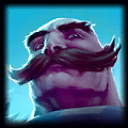


######(They go together so well)
Or by searching from them in in the toolbar
What if I want to use a character without it triggering the formatting effect?
Simply just put a backslash \ before the formatting
\#
Gives
#not big letters
Instead of
#big letters when I just wanted to hashtag
Sorry for the length :)